
LWC: Basic File Uploader

Hello Dear Coders, What we are building today?

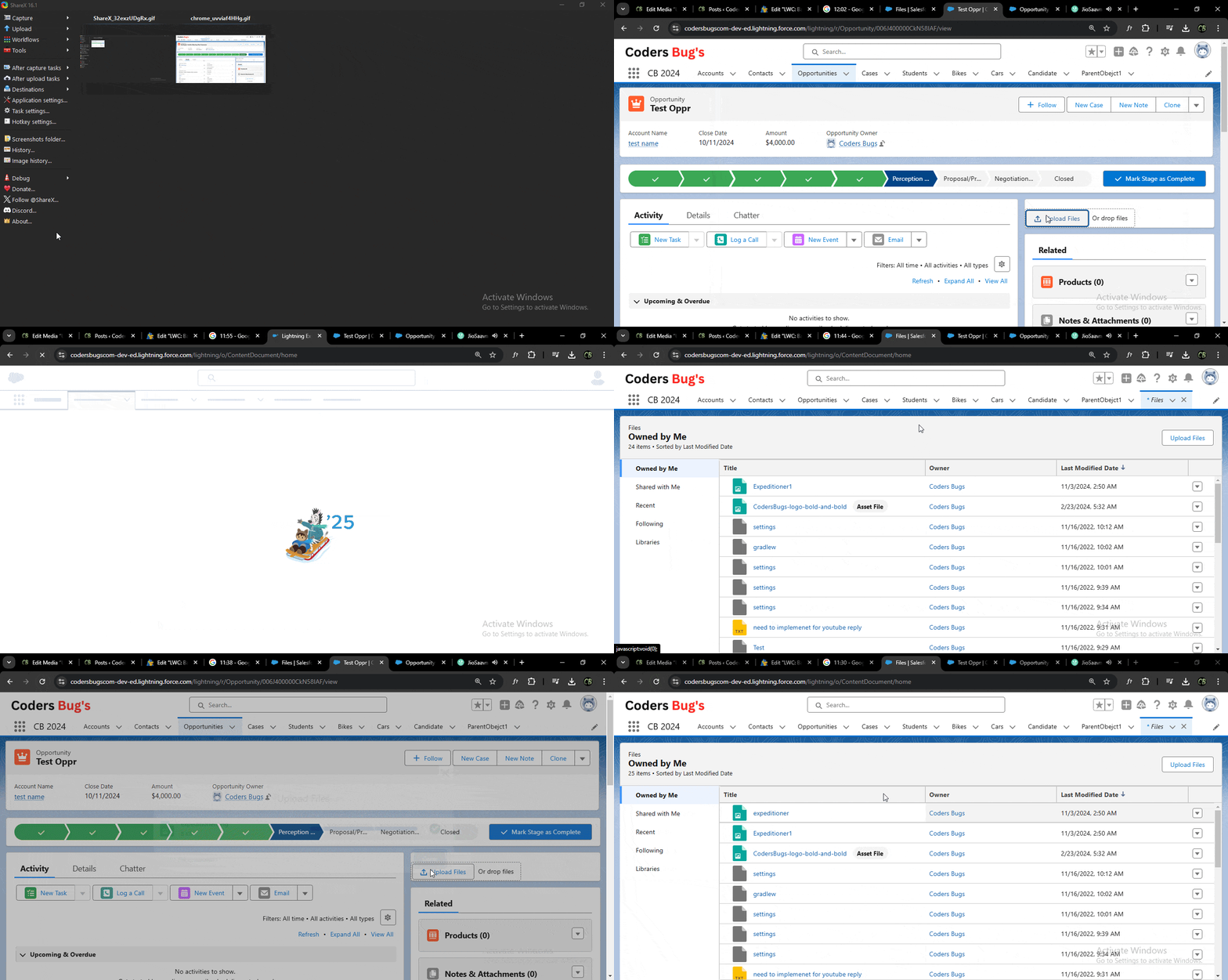
A basic file upload component using LWC which will upload file to standard Content Document  object. We will be using standard lightning-file-upload to upload file.

<lightning-file-upload record-id={recordId}></lightning-file-upload>  

lightning-file-upload requires record-id attribute, and record get saved to standard ContentDocument object.

See Demo: Uploading image using LWC lightning-file-upload

Basic image uploader in lwc

Here is the complete code to build simple image uploader using lighting-file-upload lighting web component. 

  1. HTML file
  2. JS file
  3. XML file

Find all three files below:

HTML File
<template>
<!-- // this lightning-file-upload  component directly upload image to attachment (ContentDocument object) -->
    <div class="slds-card">
        <lightning-file-upload 
            name="fileUploader"
            accept={acceptedFormats}
            record-id={recordId}
            onuploadfinished={handleUploadFinished}
            disabled={imageSelected}>
        </lightning-file-upload>
    </div>
</template>
JS File
import { LightningElement, api, track } from 'lwc';

export default class BasicImageUploader extends LightningElement {
    @api recordId;
    @track imageSelected = false;

    get acceptedFormats() {
        return ['.jpg','.png'];
    }

    handleUploadFinished(event) {
        const uploadedFiles = event.detail.files;
        if(uploadedFiles && uploadedFiles.length > 0){
            console.log('image uploaded check notes and attachment');
        }
    }
}

Note:  You can use multiple formats depends on requirement. Example: Passing image and pdf formats.

get acceptedFormats() {
    return ['.jpg','.png','.pdf','.jpeg'];
}
XML File
<?xml version="1.0" encoding="UTF-8"?>
<LightningComponentBundle xmlns="http://soap.sforce.com/2006/04/metadata">
    <apiVersion>59.0</apiVersion>
    <isExposed>true</isExposed>
    <masterLabel>Basic Image Uplader</masterLabel>
    <targets>
        <target>lightning__RecordPage</target>
    </targets>
</LightningComponentBundle>

How the component works

lightning-file-upload is a base component that uploads files straight to Salesforce. It needs a record-id, because each uploaded file is linked to that record. The file itself is saved as a ContentDocument and appears in the Files related list of the record. The accept attribute limits the file types, and onuploadfinished runs when the upload is complete.

Points to note

  • imageSelected never changes, so the disabled attribute has no effect. You can remove it.
  • @track is not needed for a simple value.
  • The handler only writes to the console. Users should see a message when the upload ends.
  • The accepted list contains .jpg and .png. Add .jpeg if you want to allow that extension.

Version with a success message

import { LightningElement, api } from 'lwc';
import { ShowToastEvent } from 'lightning/platformShowToastEvent';

export default class BasicImageUploader extends LightningElement {
    @api recordId;
    acceptedFormats = ['.jpg', '.jpeg', '.png'];

    handleUploadFinished(event) {
        const count = event.detail.files.length;
        this.dispatchEvent(new ShowToastEvent({
            title: 'Success',
            message: count + ' file(s) uploaded',
            variant: 'success'
        }));
    }
}

FAQ

Where can I see the uploaded file?
Open the record and check the Files related list.

Can users upload several files?
Add the multiple attribute to the component.

Why is record-id required?
The component links each uploaded file to that record.

Leave a Reply